
Cast video to Roku from PC
Roku sticks, boxes and Roku TV sets can appear in the cast list and receive supported files such as MKV, MP4, AVI and MOV. AIX Player converts unsupported parts while streaming when required.
Supported videos from your PC can be cast to Roku, up to 4K HDR where the source, PC, network and TV support it, with selected subtitles rendered on screen. AIX Player converts unsupported parts while streaming when needed.
Which files can I cast?
Roku devices read a fairly short list of formats natively, which is why so many Roku owners end up converting files. AIX Player makes that unnecessary: the decoding happens on your PC, so MKV, MP4, MOV, AVI, WMV, TS, M2TS and WebM all cast the same way.
How does it connect to your Roku?
AIX Player connects to Roku over the protocol the device already speaks, sending it the video itself rather than a captured copy of your screen. That is why cast video on a Roku looks like the film and mirrored video does not.
What to expect on a Roku
- How it plays: through the free AIX Casting Receiver channel on the Roku, added once.
- Plays directly: H.264 video, and HEVC on some models, up to 2160p (4K) at 60 frames per second on the models that support it.
- HDR formats: HDR10, HLG, HDR10+ and DV HDR, on the models that support them.
- HDR: HDR stays HDR when the TV can play the file directly; otherwise the picture is converted to SDR for the TV.
- Sound: a file the TV plays directly keeps its own soundtrack; every stream AIX Player converts carries AAC sound.
- Subtitles: the subtitle you choose in AIX Player shows on the TV.
- Casting allowance: the free app includes 60 casting minutes in total, once, not per session; AIX Pro makes casting unlimited.
From AIX Player’s device catalogue; AIX Player checks your Roku before it sends anything and converts only what it cannot play. Casting an MKV? Cast an MKV to the TV. Something not working? Fix casting problems.
How do I cast it? Three steps
Jellyfin, Emby and Plex videos play on your PC; casting media-server videos is not supported. Network shares (SMB / NAS) can be browsed and played on your PC for free, with no time limit. These casting steps are for supported local files. Read about media servers.
-
Open the video and set it up how you want it
Open it from your PC’s drive or a USB or SD drive, then pick the audio track and choose the subtitle. The soundtrack and subtitle you choose are the ones the TV gets.
-
Press cast and choose your Roku
AIX Player scans the network and lists what it finds by name. The first time you pick a Roku it checks for our free AIX Casting Receiver channel and, if it is not there, hands you the link to add it from your Roku account with the code PG26GTJ — a one-off step.
-
Sit down — your PC is the remote
Play, pause, seek, mute, switch subtitle or audio track and disconnect, all from the AIX Player window. On a Roku the volume level itself belongs to the Roku remote. Nothing is mirrored, so you can carry on using the PC.
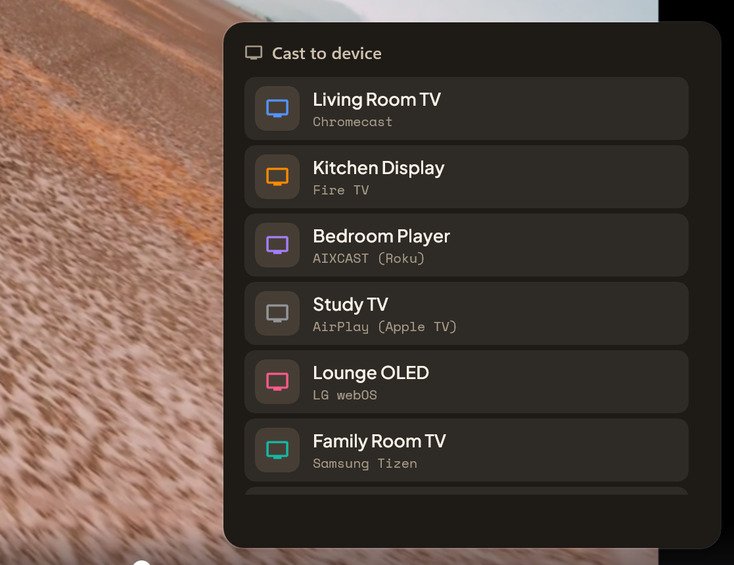
Devices appear on their own. Roku is the one that needs a step: the free AIX Casting Receiver channel, added once from your Roku account. Film behind the cast list: Charge © Blender Foundation / studio.blender.org, CC BY 4.0.
Will my subtitles show on the TV?
Roku cannot see a subtitle file that lives on your PC, and its own subtitle support is limited to a few formats. Between those two facts, subtitles are the thing Roku users most often lose.
AIX Player takes care of both. Choose a subtitle in the player, a track inside the video or a separate file you added, and that subtitle shows on the Roku. You can switch it while the film plays. The subtitles when casting guide has the details.
What if my TV refuses the file?
Roku is one of the more particular devices about formats, so conversion is common when casting to one. AIX Player checks what your Roku accepts before sending anything, then converts only what is needed while the film plays.
Roku casting questions
Why is my Roku not showing up when casting from PC?
It is almost always the network, not the Roku. Roku devices announce themselves automatically, so if yours is missing your PC and Roku are probably not on the same network. Guest Wi-Fi keeps them apart, split 2.4/5 GHz networks often do too, and some routers stop devices seeing each other. Check the Roku is awake as well.
Do I need to add a channel to my Roku?
Yes — once, and it is free. AIX Player casts through its own free receiver channel, AIX Casting Receiver, which has to be on the Roku. You add it once from your Roku account: open my.roku.com/account/add/PG26GTJ (access code PG26GTJ), sign in, and it installs on the television over the air. Once it is installed the tile on the Roku home screen reads AIX Receiver, which is the same channel under a shorter name. AIX Player offers you that link automatically when the channel is missing. Nothing else on the Roku needs setting up, and Roku Search does not carry the channel in every country, so the code is the reliable route.
Can I cast 4K to a Roku Ultra or Streaming Stick 4K?
Yes, where the Roku supports 4K. AIX Player checks what your Roku can play first and converts only what needs changing. HDR stays HDR when the Roku can play the file directly; otherwise the picture is converted to SDR for the TV.
Does the Roku remote still control playback?
Yes, alongside your PC. Play, pause and volume work from the Roku remote, and the full set of controls — seeking, subtitles, audio tracks and disconnect — stays in the AIX Player window.
Casting to something else?
The same files, the same three steps and the same subtitles reach every TV family AIX Player supports — each paired through its own protocol rather than a generic fallback.
Put tonight’s film on the Roku.
Install AIX Player, open a video, press cast. That’s the whole setup.
GET IT FROM Microsoft Store